
Introduction
Webcams are an integral part of modern computing, allowing us to communicate seamlessly. However, their presence can also lead to privacy concerns if unauthorized applications access your camera. To safeguard your privacy, you must know how to identify and manage which applications use your camera.
Signs That an Application Is Using Your Camera
Recognizing the signs that your camera is in use is the first step toward securing your device. Here are key indicators:
– LED Indicator: Most webcams have an LED light indicating activity. If it lights up unexpectedly, it could mean your camera is being used.
– System Notifications: Sometimes, a system may notify you about active camera use. Pay attention to such messages.
– Increased Battery Consumption: Unusual battery drain might indicate that system resources like the camera are being utilized heavily.
Understanding these signs helps you stay aware and ready to investigate further if necessary.
Identifying Camera Access on Windows
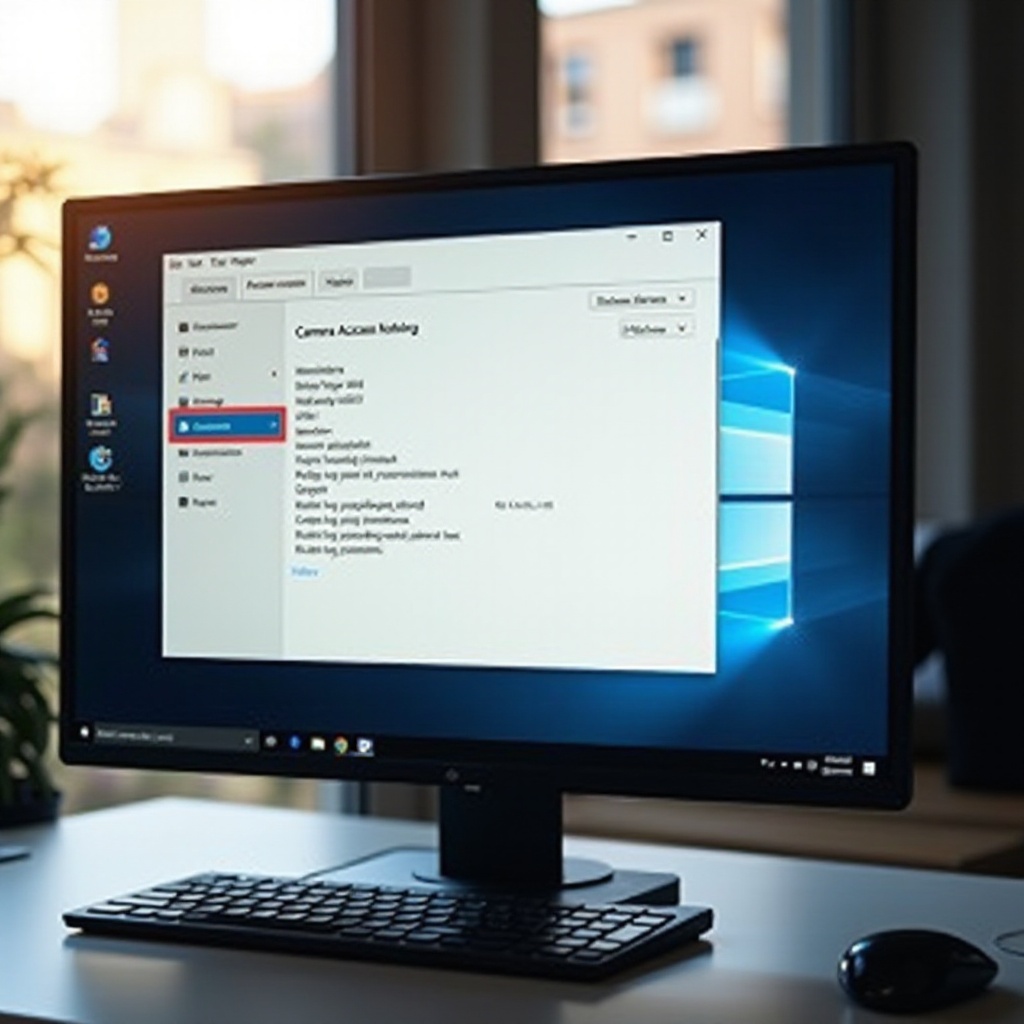
If you suspect unauthorized camera access, Windows provides tools to help pinpoint the application responsible. Here’s how:
1. Task Manager: Press ‘Ctrl + Shift + Esc’ to open Task Manager. Check ‘Processes’ for any unfamiliar programs using the camera.
2. Privacy Settings: Navigate to ‘Settings > Privacy > Camera’ and review apps with camera access. Disable unnecessary permissions.
Using these tools, you can identify and manage applications accessing your camera, thus ensuring your privacy.
Determining Camera Access on macOS
For Mac users, identifying which apps use your camera involves different methods. Here’s how you can do it:
1. System Preferences: Go to ‘System Preferences > Security & Privacy > Camera’ to inspect the applications with camera permissions. Revoke access where needed.
2. Terminal Commands: For advanced monitoring, use Terminal commands like ‘lsof | grep “AppleCamera”‘ to see which processes are using the camera.
These steps empower macOS users to keep their devices secure and maintain tight control over camera access.
Third-Party Tools and Software for Monitoring Camera Usage
Beyond native tools, third-party applications can enhance your camera monitoring capabilities. Consider these options:
– Webcam Security Apps: Use applications such as ‘OverSight’ for macOS or ‘Who Stalks My Cam’ for Windows to get notified about camera access.
– Antivirus Software: Enable camera tracking features in security suites to enhance monitoring and receive alerts for unauthorized access.
These additional measures provide a layered defense, ensuring comprehensive protection against unauthorized camera use and enhancing your overall device security posture.
What to Do If You Find Unauthorized Camera Access
Discovering unauthorized access requires immediate action to protect your privacy. Here’s what you should do:
1. Disconnect from the Internet: Immediately disconnect to halt any further unauthorized access.
2. Identify & Uninstall: Use Task Manager or System Preferences to locate the rogue application and remove it.
3. Update Passwords: Change passwords for important accounts that may be compromised.
4. Scan for Malware: Run a full antivirus scan to detect and remove any remaining threats.
These steps help regain control and fortify your security against future breaches, ensuring your peace of mind.
Strategies to Enhance Your Camera Security
Securing your camera isn’t just about handling breaches; it’s also about prevention. Implement these strategies for added safety:
– Regular Software Updates: Always update your OS and relevant software to patch security vulnerabilities.
– Trusted Software Sources: Only download applications from reputable sources to minimize risks.
– Physical Covers: Invest in camera covers or privacy shields to physically block the lens when the camera isn’t in use.
Adopting these strategies fortifies your defenses, ensuring that your camera remains a tool for connectivity, not a vector for intrusion.
Conclusion
Protecting your privacy in the digital age requires constant vigilance. By recognizing signs of unauthorized access, using platform-specific tools, integrating third-party solutions, and adopting preventive strategies, you can secure your webcam effectively. Take charge of your digital security and stay informed to protect what matters most.
Frequently Asked Questions
How can I tell if my camera is being accessed without my consent?
Check the LED indicator, monitor battery usage, and use system tools to check which apps have camera access.
Are there any signs of malware trying to access my camera?
Unusual battery drain and unexpected notifications can signal unauthorized camera activity, potentially due to malware.
What should I do if I suspect my camera is being used by an unknown application?
Investigate with Task Manager or System Preferences, remove unauthorized apps, and run a malware scan.